Choose the right paper
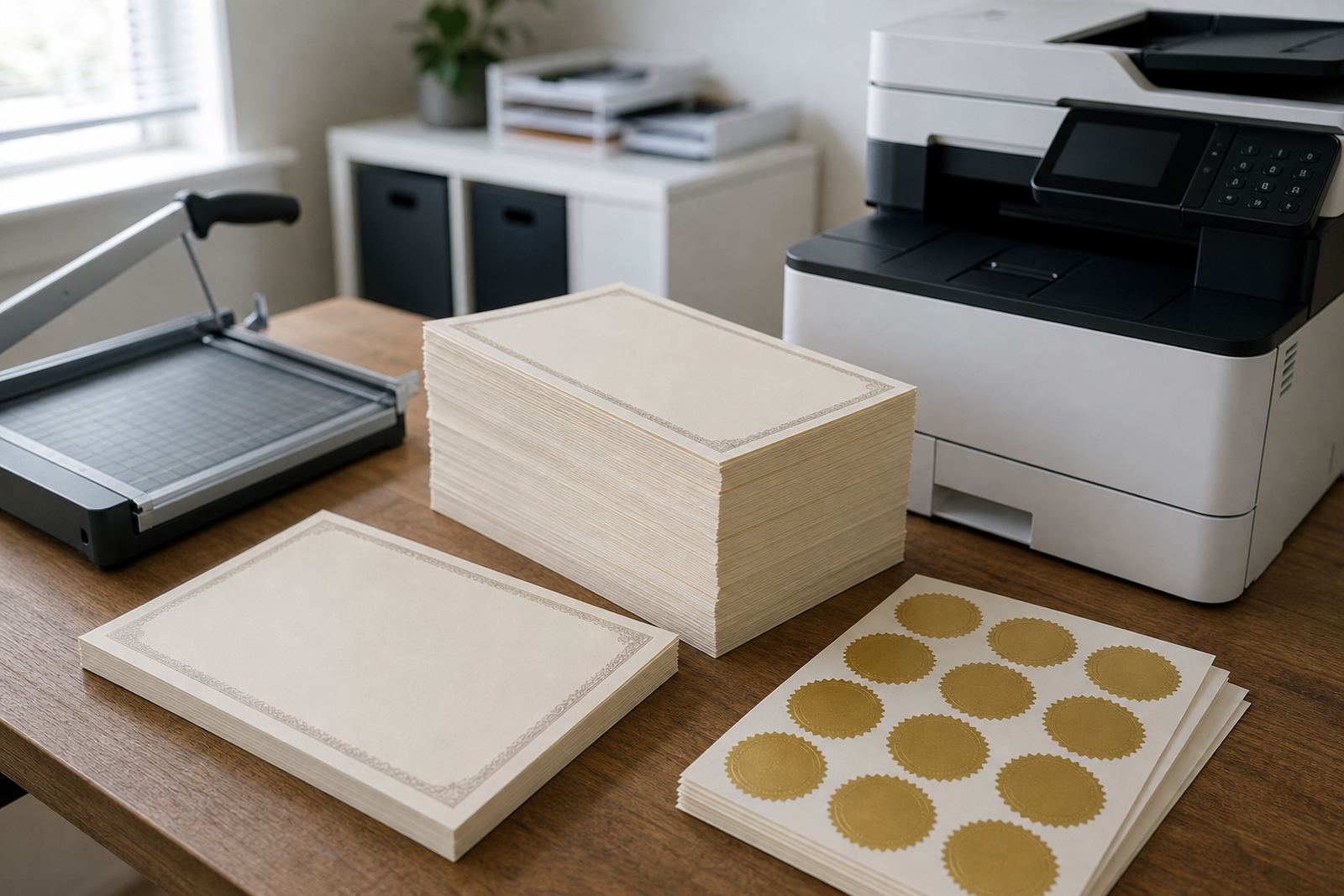
Certificates feel better on heavier stock, but not every office printer can handle thick paper. Check your printer's maximum paper weight before buying. Many office colour lasers handle around 160 to 220 gsm through the manual feed tray. Textured or parchment style paper looks smart but can affect toner adhesion, so test a sheet first. For inkjet printers, use paper made for inkjet so the ink does not bleed.
Set up the template
A clean template saves hours when names and awards change.
- Keep important text at least 10 mm from the paper edge
- Use mail merge so names come from a spreadsheet
- Check spelling of every name against the class or team list
- Use logos at high resolution so they print sharply
Most office printers cannot print right to the edge, so design borders that look good with a white margin.
Printer settings that help
Select the correct paper type and weight in the print dialogue. This changes the fuser temperature on a laser printer and the ink amount on an inkjet. Feed heavy sheets one at a time through the manual tray if the main tray jams. Print in small batches so you can catch any problem early instead of after the whole pack.
Colour and ink planning
Gold borders and coloured crests use a lot of toner or ink, especially on large print runs. Check your levels before you start and keep a spare cartridge for each colour. If colours look dull on textured paper, try a smoother stock or a higher quality setting.
We can help you print
Our team supplies certificate paper, ink and toner, and can recommend settings for your office printer. If the volume is too big for your machine, ask us about stepping up to a colour printer that handles heavier stock. Tell us what you print and how many, and ask for a quote on the paper and supplies.