
Start with the print itself, not the machine
Before changing settings, look at the page or panel from top to bottom. Note whether the problem affects one colour only, all colours, or just one area of the sheet. That tells you whether you are dealing with a nozzle issue, a media feed issue, or a file setup problem. On a busy site in Ndabeni or Bellville, it is easy to rush this step and miss the real cause.
- Check if streaks run in the direction of print travel.
- Look for fading at the edges, which can point to media size or head alignment.
- Confirm whether the fault appears on every job or only one file.
- Make sure the issue is not coming from the computer image view only.
Clean heads and check ink flow
Streaks, missing lines and patchy solid blocks often come from blocked nozzles or air in the ink path. Run the printer’s normal cleaning routine first, then print a nozzle check. If one colour is still broken, repeat once more and allow the machine to settle for a few minutes. Too many cleanings waste ink and can make the problem worse, not better.
For printers that stand idle during load-shedding or over weekends, pigment can settle and dry faster. Keep the room closed, out of direct sun and away from salty coastal moisture where possible. If the machine has been unused for days, a gentle clean before the first job is usually worth it.
- Use the nozzle check to see which channels are failing.
- Confirm the ink cartridges or tanks are seated correctly.
- Check that no lines are kinked or pinched on machines with external feed.
Match the media setting to the paper or board
Colour can look dull, wet or uneven when the media type is wrong. A poster printed on coated stock needs a different setting to a proof sheet or self adhesive vinyl. If the printer thinks it is feeding plain paper, it may lay down too little ink and the colours look washed out. If it thinks the sheet is heavier than it is, drying can slow and smudge marks may appear.
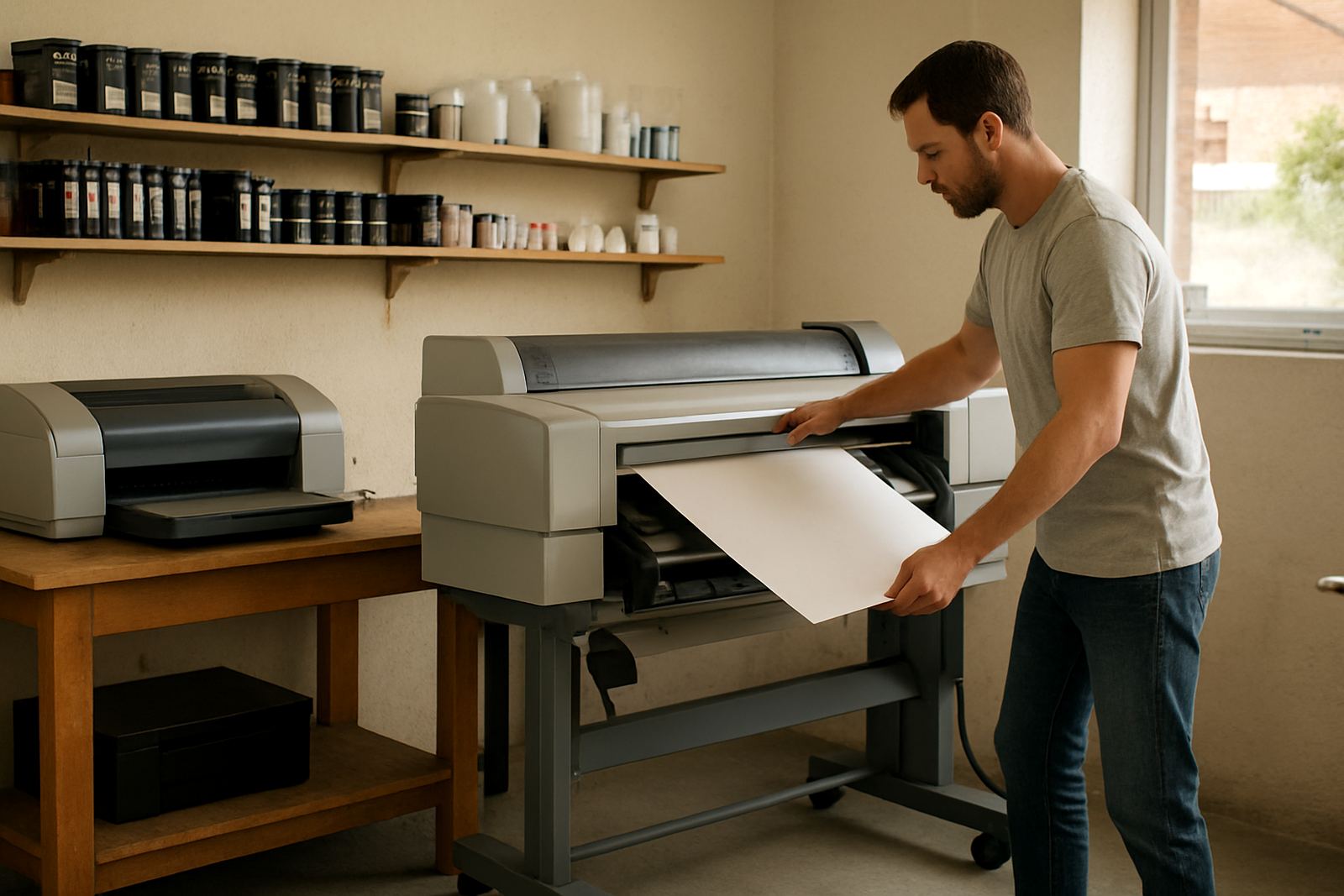
For wide-format work, the profile and media choice should match the roll width, coating and intended use. A 610 mm proof roll is not the same as a 1.2 metre banner stock, even if both feel smooth to the touch.
- Select the media type that best matches the surface.
- Check the platen gap or thickness setting if the machine has one.
- Allow drying time before stacking or trimming.
When colour shifts from one job to the next
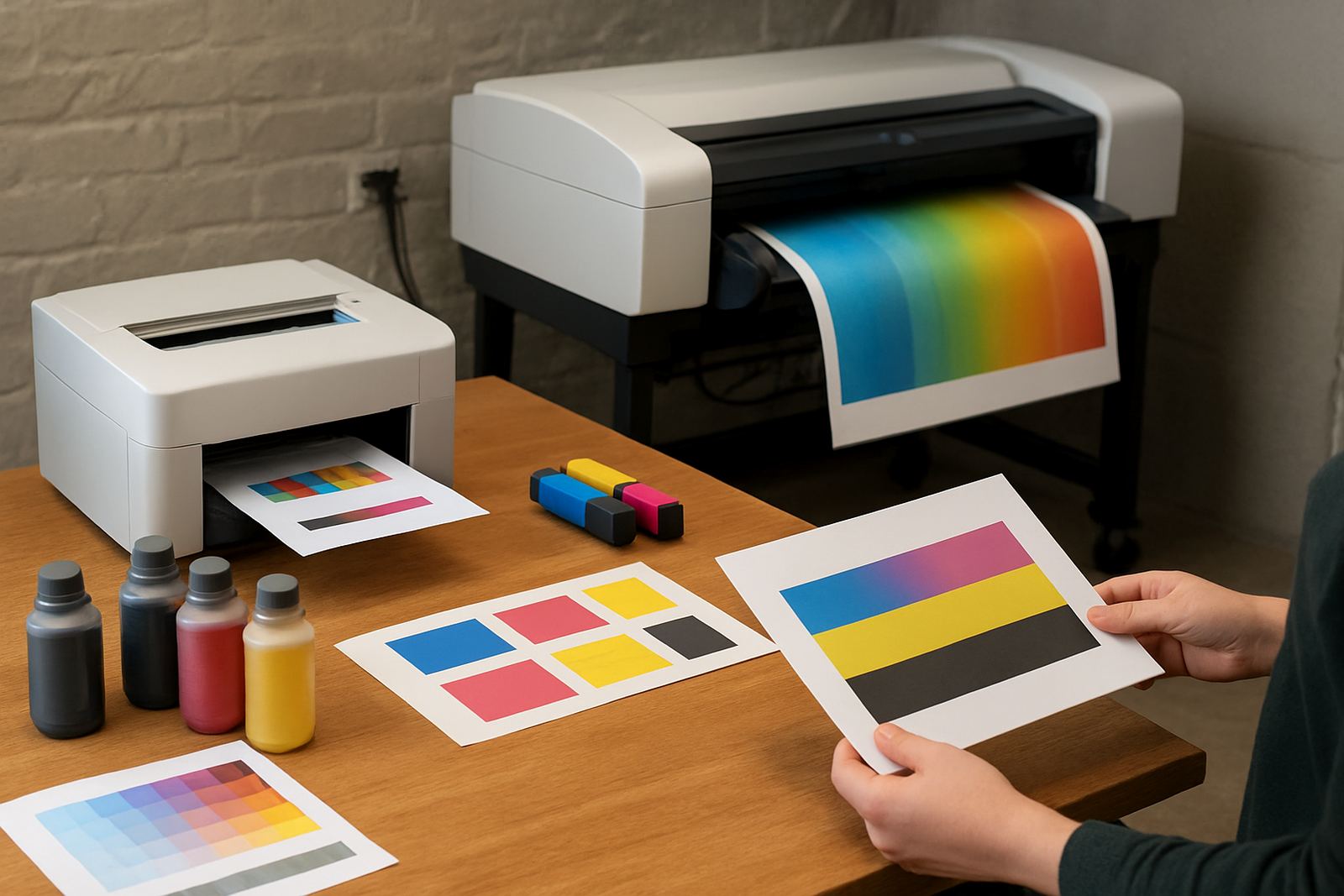
If one proof looks clean and the next looks slightly green, pink or flat, the issue may be in the file, not the printer. Check that the artwork is sent at the same size, resolution and colour space each time. Different software or driver settings can change how colour is converted. That is common in design studios where more than one person prepares files.
Also confirm that all jobs are going through the same print queue settings. A quick change for a presentation and then a normal office job can leave the driver on the wrong profile, which is easy to miss.
- Use the same colour mode for repeat jobs.
- Check that the image is not being scaled unexpectedly.
- Print a known test file to compare output.
Inspect alignment, feed and rollers
Banding and uneven blocks can also come from feed issues. If the sheet moves slightly off-line, the image may look stepped or blurred even when the heads are fine. On larger machines, worn rollers, dusty sensors or a warped feed path can show up first on long jobs. Coastal humidity in places like Somerset West can also affect some stocks if they are stored open.
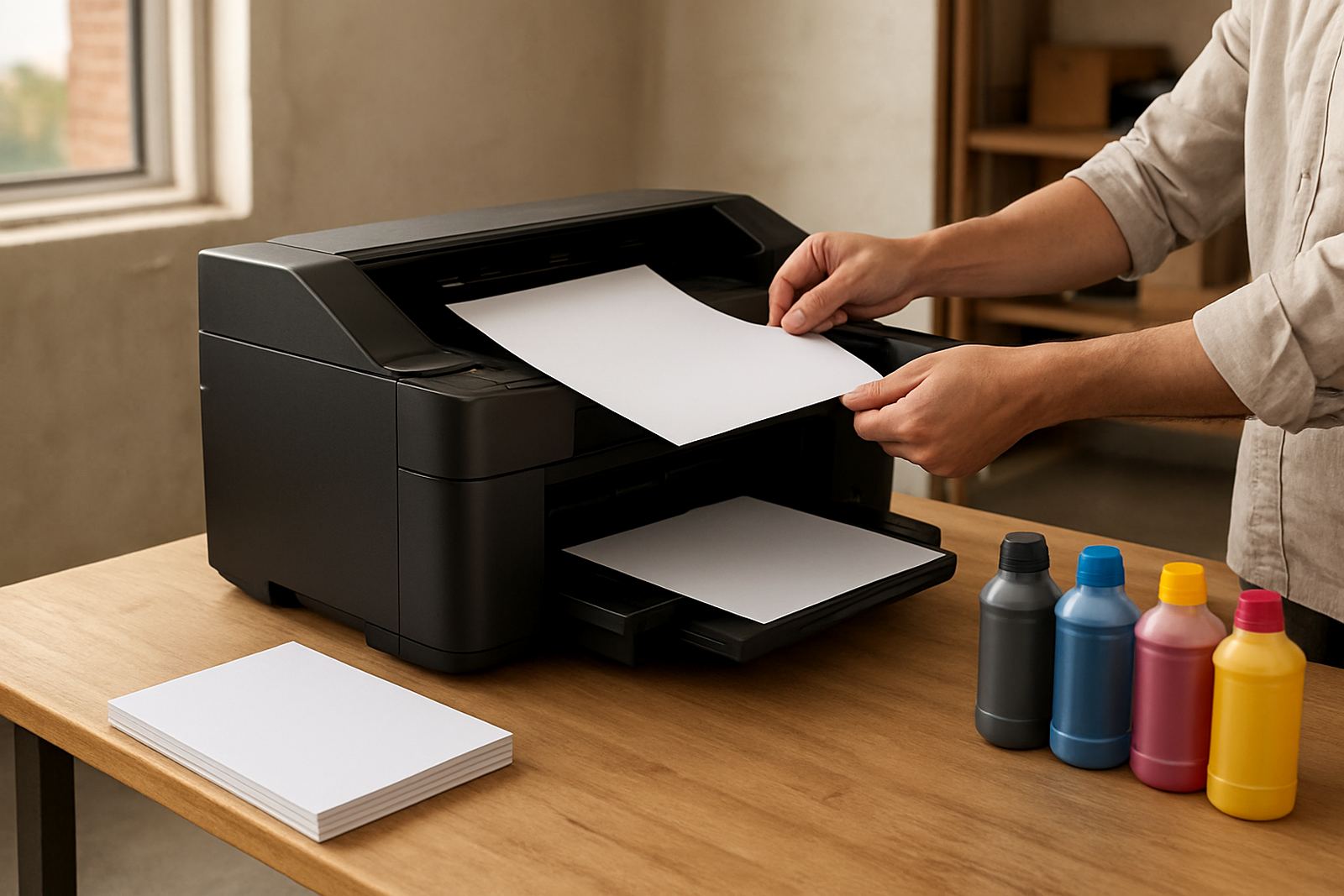
Check that the paper is loaded square, the guides are not too tight, and the stack is not curled. If the media is bent or damp, the printer has a harder time keeping a steady path.
- Reload the paper or roll and test again.
- Look for dust around the feed path and sensor points.
- Replace worn rollers if the machine slips or marks the sheet.
Know when to call for a hands-on check
If cleaning, media checks and file review do not solve the issue, the printer may need alignment, firmware attention or a service visit. A technician can test the heads, check the feed system and confirm whether the machine is still holding colour correctly across the full width. For sign shops and offices that cannot afford repeat reprints, that saves time and material.
MyColour can help with print quality checks, media matching, consumable planning and remote help where that is enough. If needed, we can also arrange collection and return so the machine is tested properly and put back into service without unnecessary delay.
- Use support sooner if faults return after every clean.
- Ask for help when a full poster or proof batch is going wrong.
- Keep sample prints so the fault can be compared clearly.