
Why colour drifts even when the file is correct
When a print comes out with a green cast, dull reds or a muddy grey, the file is not always the problem. In a busy studio or office, colour can drift because the printer is matched to the wrong media type, the wrong ink set is loaded, or the machine has not been used often enough to stay in shape.
In Cape Town, we often see this after a printer has sat through a humid weekend, a power interruption or a stretch of light use. Coastal air can affect certain papers and inks, and load-shedding can interrupt a job mid way. If a proof looks different on Monday morning, first check the basics before assuming the printer has failed.
For teams in Ndabeni, Montague Gardens or Woodstock, the issue is usually practical. A sign shop may be running coated media for mock-ups, then switch to plain paper for admin prints without changing settings. An office may refill with the wrong colour cartridge or keep using an old driver profile after a machine move.
Check the paper or media before changing the printer
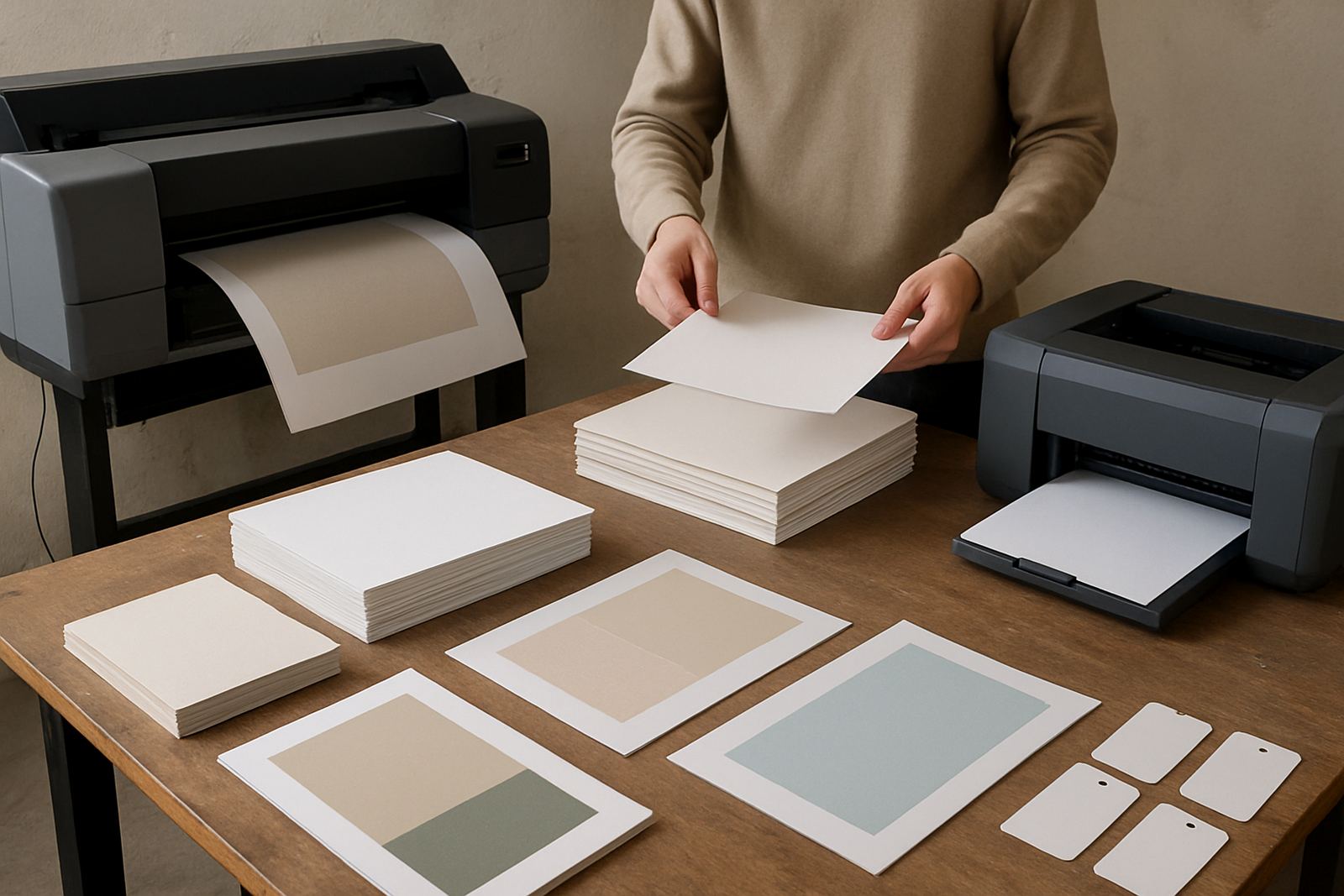
Media is one of the biggest causes of colour change. A glossy sheet reflects light differently from a matte sheet, while vinyl, proofing paper and coated poster stock all pull ink in their own way. If the media type is wrong, colours can look washed out or too heavy.
- Confirm that the paper weight matches the printer setting.
- Check that coated, matte, glossy or plain paper is selected correctly.
- Make sure sheets are dry and stored flat, not curled from humidity.
- Look for fingerprints, dust or moisture on the printable side.
For large-format work, this step matters even more. A poster printed on the wrong profile may look acceptable under office lights but shift badly in a shop window. If your team in Bellville or Somerset West prints customer proofs, keep a note of which media gives the closest match for each job type.
Ink condition and cartridge handling matter more than many teams think
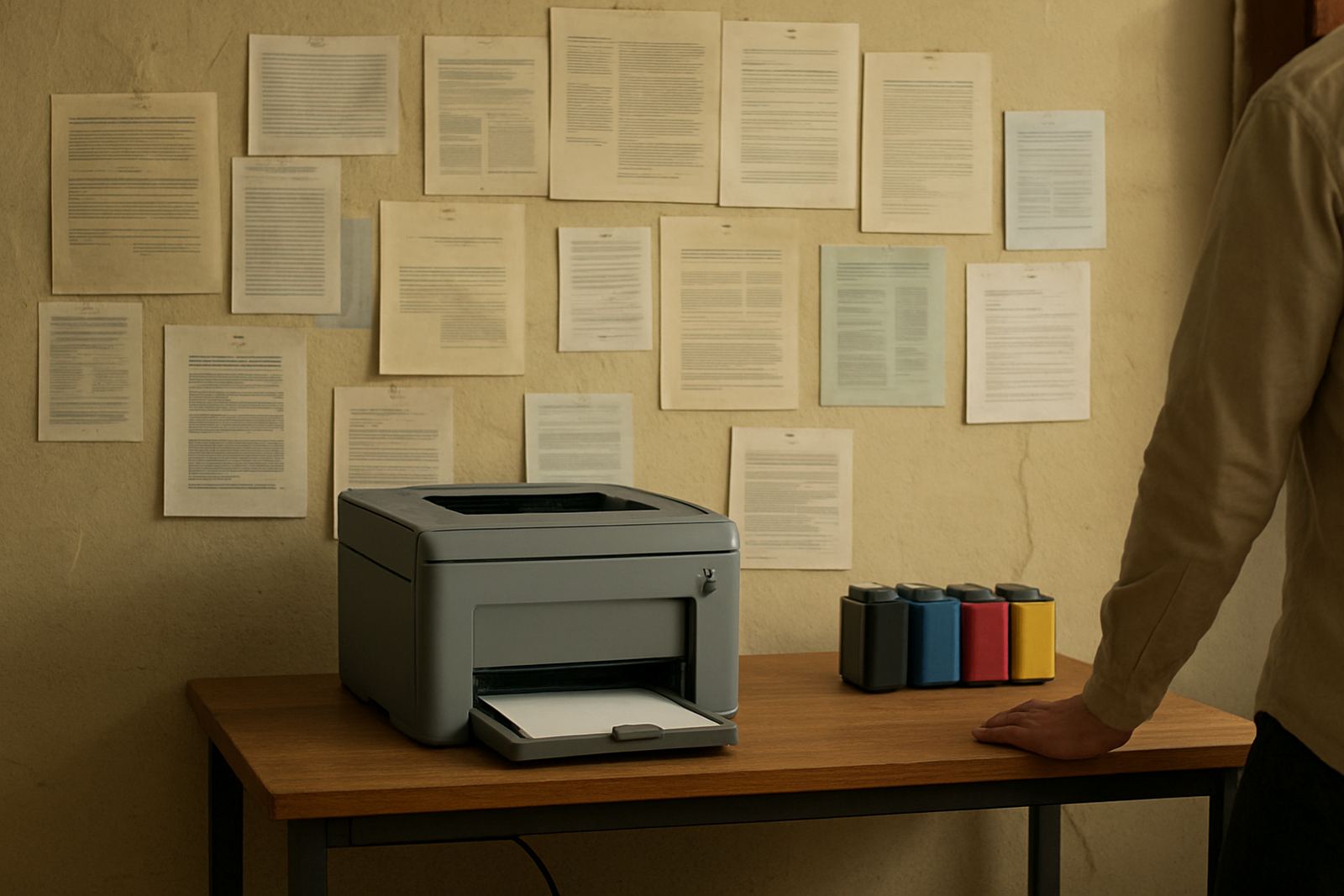
Ink can shift when cartridges are near empty, expired, or not seated properly. On desktop inkjet colour printers, a faint clog in one channel can change skin tones, brand colours and dark blues. On wide-format machines, ink lines and cartridges should be kept in good order and checked before a rush job.
Handle cartridges carefully and avoid leaving them open to air for too long. If ink has been stored in a hot storeroom or in direct sun, it may not behave as expected. The same applies after a machine has stood unused over a holiday weekend. A quick nozzle check can tell you whether one colour is not firing cleanly.
- Check ink levels before starting a long run.
- Rattle-free does not always mean ready, so inspect the seating and seals.
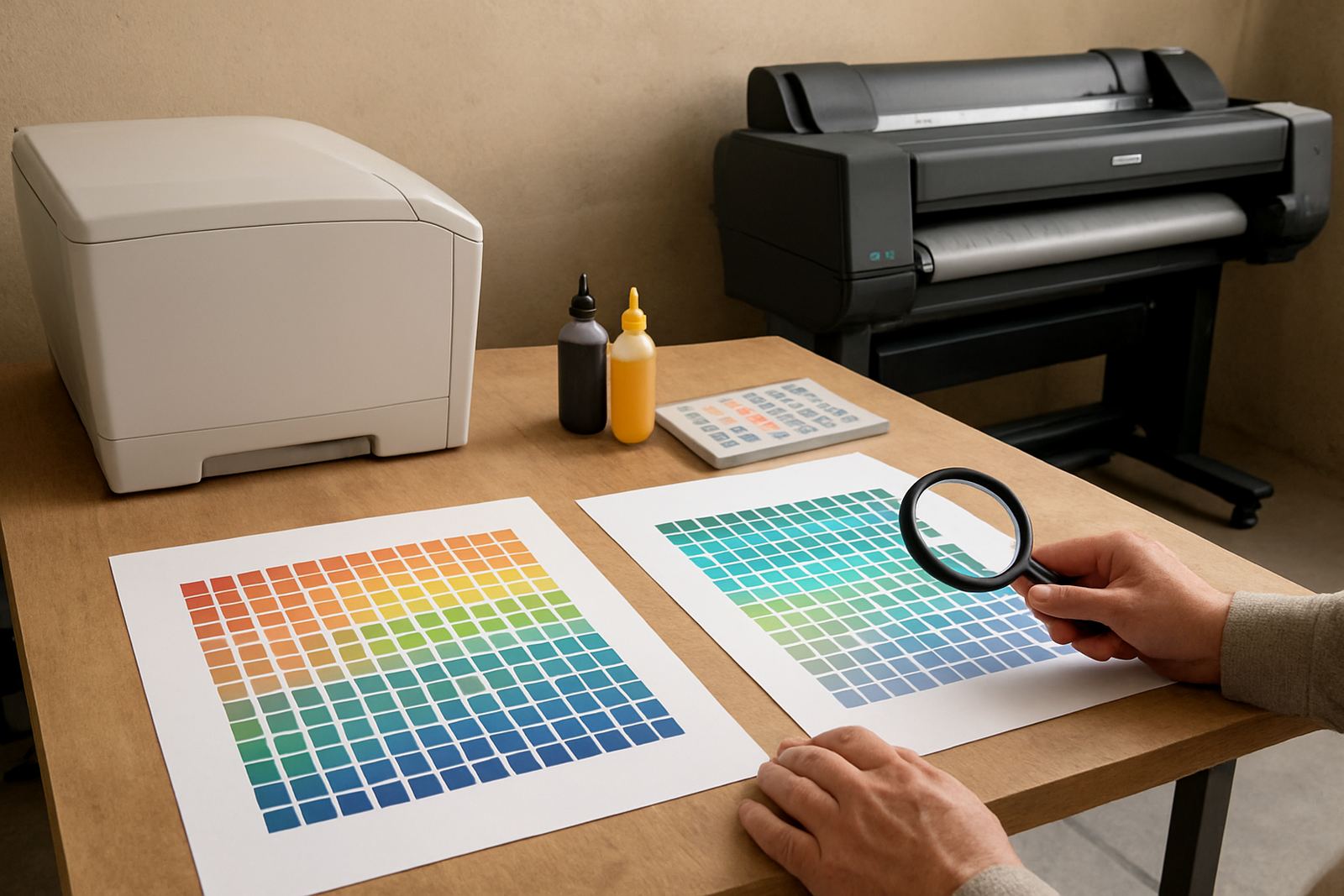
- Do a nozzle check or test print if the colour looks uneven.
- Replace low or suspect cartridges before chasing settings.
Profile settings, drivers and everyday user choices
Many colour shifts happen at the computer rather than the printer. A file saved in one colour space and printed through a different driver can change the result enough to upset a client proof. The same happens when someone bypasses the usual settings to print quickly from an office PC.
Make sure the correct printer driver is installed and the right profile is used for the chosen media. If several people share the same machine, keep a simple print note near the printer with the usual settings for proofing, posters and general colour work. This saves time and cuts arguments over who changed what.
After a machine move, a Windows update or a network change, it is worth checking that the printer name, port and preset are still correct. A team in Claremont may think the colour has shifted when the machine is actually using a basic office preset instead of the proofing preset that worked last week.
Maintenance checks that stop colour drift early
Routine care prevents a lot of colour trouble. Dust in the machine, blocked nozzles and worn parts can all affect output. A printer that is used hard on Mondays and then left idle for days may need more regular checks than a machine that prints every day.
Keep the area around the printer clean and avoid stacking paper too close to vents or feed trays. In a print room, fine dust from cutting or trimming can end up inside the machine and on the media. If the room is warm, let the printer settle before starting a long run so the media is not fed while still curled or damp.
- Run a test page at the start of each week.
- Clean the paper path and feed area as part of normal housekeeping.
- Watch for banding, missing colours or repeated marks.
- Schedule preventive maintenance before a major campaign or tender run.
A simple Cape Town example from proof to poster
One small design studio in Ndabeni called after a batch of brand proofs came out slightly warmer than the approved sample. The screen looked fine, but the prints were showing a yellow cast. The issue turned out to be a mix of humid paper stock, an old media preset and one nearly empty ink cartridge. Nothing was broken.
After the team changed the media setting, replaced the weak cartridge and reprinted on properly stored stock, the colour settled back to normal. The lesson was simple. Before calling for a service visit, check the paper, the ink and the print preset in that order. In many cases, that is enough to get a clean result without losing a morning.
For sign shops and offices across Cape Town, that small routine can save a lot of call-outs and reprints. It also helps when courier supplies are coming in from Ndabeni and the next job has to go out the same day.
When to call for help and what to have ready
If the colour still shifts after you have checked media, ink, settings and a test page, it is time to bring in support. A technician can look at alignment, print quality, feed issues and other faults that are not obvious from the front panel. Keep the details ready so the fault can be traced faster.
- A sample print showing the problem.
- The media type and size used for the job.
- Which ink cartridges or consumables are installed.
- Any recent changes, such as a move, power cut or driver update.
- Whether the issue is constant or only on certain jobs.
MyColour works from Ndabeni in Cape Town and supplies teams nationwide, with practical help for desktop colour printers, large-format machines, ink supply planning and print quality checks. If you need remote help, collection coordination or consumable reordering, that short list above makes the next step much quicker.